
'/%3E%3C/svg%3E)

Introduction
Azure Virtual Desktop is a great way to provide users with a virtual desktop experience. It can be used for a variety of scenarios, such as providing a desktop environment to users who don’t have one, or consolidating multiple desktops into one. Azure Virtual Desktop can also be used to support BYOD scenarios and get applications out to your remote workforce consistently and securely. If you’re wondering how to set up Azure Virtual Desktop with AAD in under an hour, this article is for you.
Recently, it has become possible to connect Azure Virtual desktops to Azure Active Directory, doing away with the need to either have an on-premise Active Directory, or set up an Azure Active Directory Domain Services instance (thereby also reducing the cost of implementation if you are a cloud-only user of Azure Active Directory)
In this article, we’ll show you how to get started with Azure Virtual Desktop in less than an hour! By the end of the article you’ll have a remote desktop you can connect to and start working with. You’ll also understand the top-level tasks required to get a basic infrastructure in place.
We’ll walk you through the steps required to create a virtual network and set up Azure Virtual Desktop, add servers to the host pool, and configure authentication.
Client connections are also covered and we run through steps to take so that you don’t come across authentication issues.
For Virtual Desktop Pricing, see the following link: https://azure.microsoft.com/en-us/pricing/details/virtual-desktop/#pricing
Assumptions in this guide:
- You have an Azure Active Directory in place for your organisation (or test purposes).
- You have the correct licensing in place for Azure Virtual Desktop.
- You are familiar with basic networking concepts to set up a VNET in Azure.
- For production deployments, you should have defined requirements with your business teams such as availability and performance expectations.
- In this guide, we have gone for all the most basic settings to get you up and running quickly with a proof of concept, but keep in mind that they might not be appropriate for your production setting.
Process
Part 1: Getting our virtual infrastructure in place
Log in to Azure Portal (https://portal.azure.com)
This needs to be done with your global admin account. Find your Azure Active Directory and find the Tenant ID on your summary page.
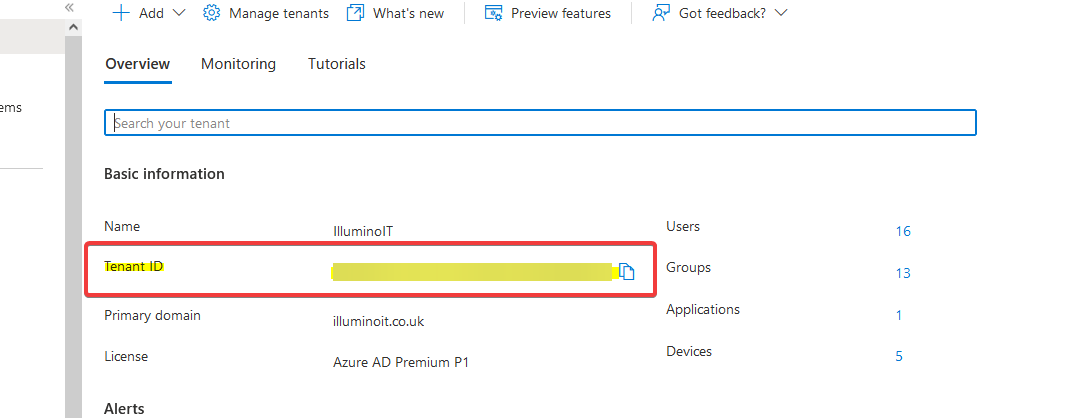
Azure AD TenantID Location
Provide consent to the Virtual Desktop app
- Head over to https://rdweb.wvd.microsoft.com/
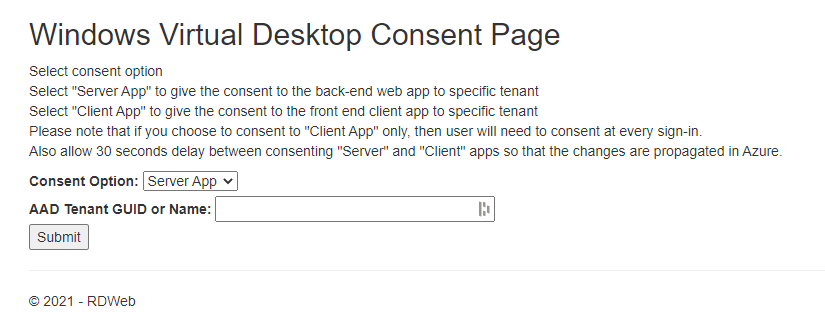
WVD Consent Page
- Paste the ID from the previous step into the AAD Tenant GUID or Name Box
- Agree to the consent popup when asked.
- Leave at least 30 seconds or so, before doing the same, only this time, choosing the client App Consent option.
Virtual Network Setup
Create a Virtual Network
Creating a virtual network is the first step in Azure Virtual Desktop deployment. This will serve as a network for the virtual machines to connect out to the internet.
- Within the Azure portal, search for a virtual network and create a new one.
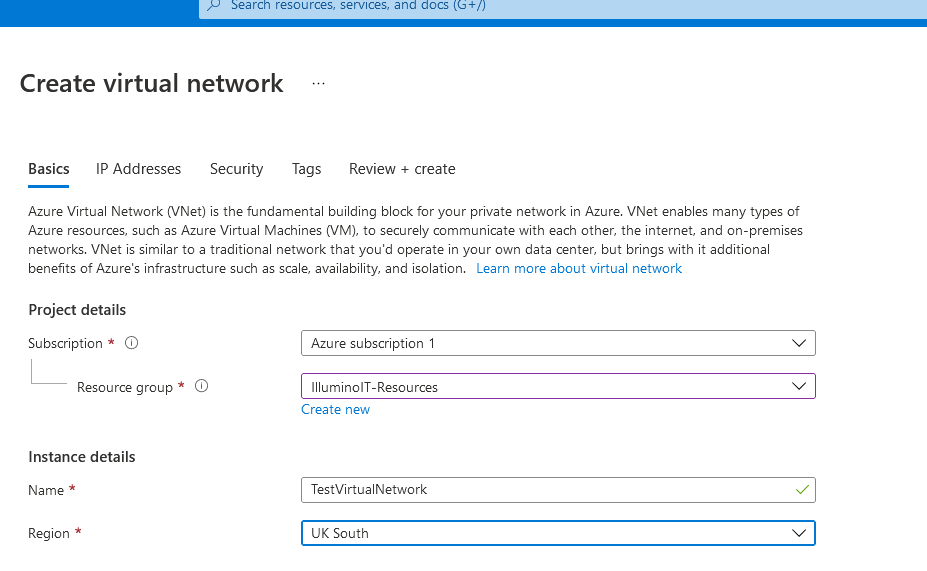
Create Virtual Network Step 1
- Make a note of the region you’re creating the VNET in as you’re going to need it later.
- Within the VNET, you will need to create an address space as well as a subnet for your machines to connect to. Set the DNS for the VNET to use Azure DNS Servers. Below are some example default settings.
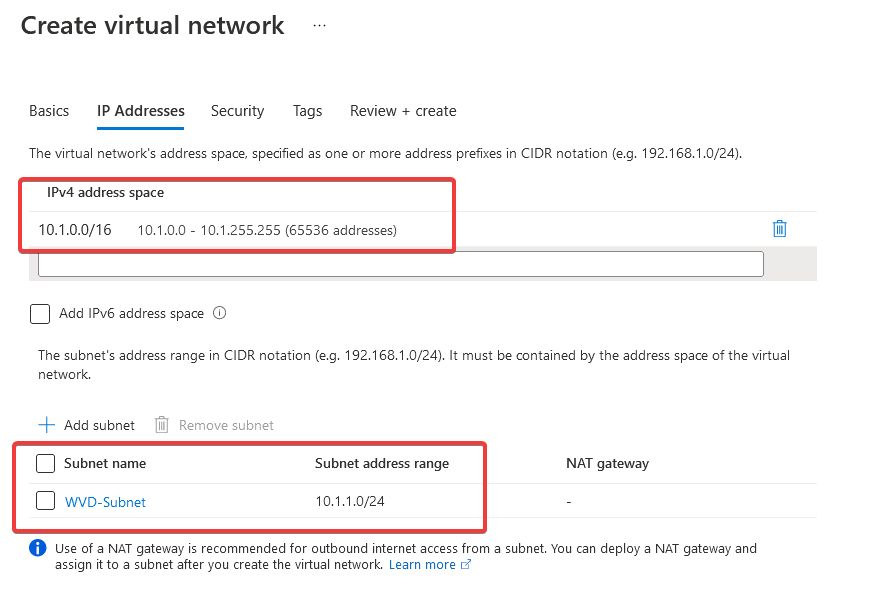
Create Virtual Network Step 2
- We’ll leave the security defaults as they are for now (I suggest strongly thinking about your requirements here!)

Create Virtual Network Step 3
- Click on Review and Create.
- Once the deployment is complete, click “Go-To Resource”
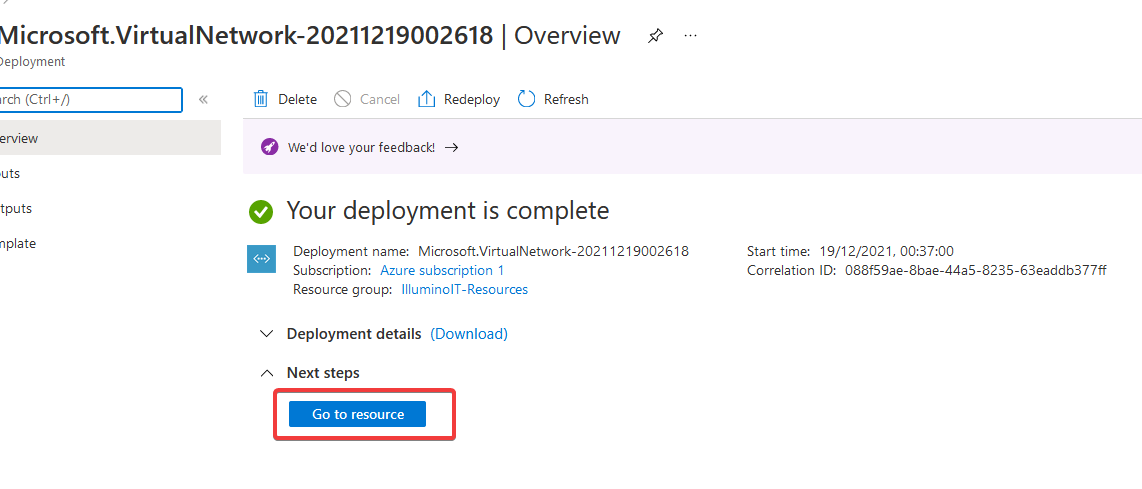
Create Virtual Network Step 4
- Click on address space and check you have one in there:
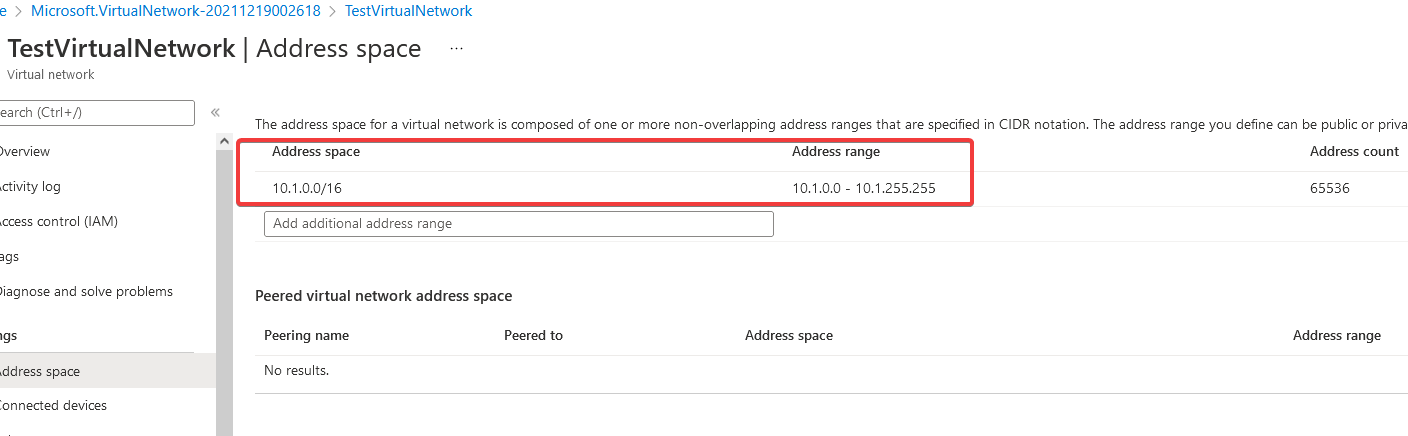
Virtual Network Address Space
- Click on Subnets and check one is set up. You might want to think about changing the name to something more memorable and within a naming convention.

Virtual Network Subnet
- Click on DNS Servers from the left-hand menu. Check that they show default (Azure-Provided)
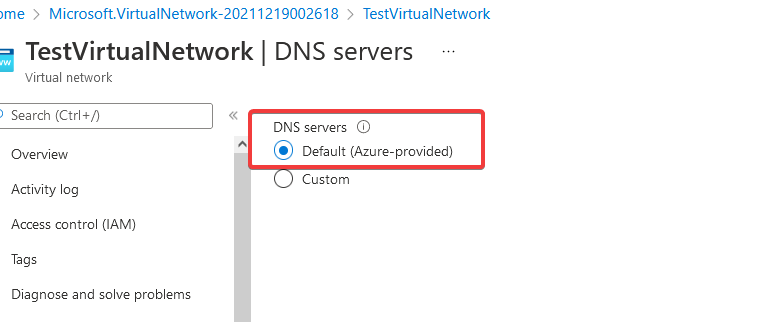
Virtual Network DNS Servers
Setting up Azure Virtual Desktop
Create a Host Pool
Azure Virtual Desktop can be quickly set up by creating a host pool.

WVD Setup Host Pool 1
- Select the relevant subscription and the resource group you want to place your Virtual Desktop infrastructure in. We would recommend you create a specific resource group so that you can easily manage costs and permissions for those resources within Azure.

WVD Setup Host Pool 2
- Give the host pool a name. Deciding on a standard naming convention will help here if you find yourself in the situation of managing several host groups.
- Next up, you need to select the location for the metadata related to this host group. Ideally, this will be the region you are based or a region where the host pool is to be deployed. You can find out more about Azure geographies at the following link: https://azure.microsoft.com/en-gb/global-infrastructure/geographies/#overview. You should also base this choice on any legal / compliance aspects which apply to your business.
- Choose “no” to validation environment.
- Select your host pool type. The choices are personal or pooled. Personal allows you to assign users to specific machines, whereas pooled will provide flexibility and direct users to certain machines based on specific criteria. Choose: Pooled and Breadth-First. This will ensure users are spread out across servers. You can also choose whether you want to limit the number of connections to a host, based on available resources.
Adding Virtual Machines
This is where you will create the machines, to which the users will connect to run their apps and desktops.
- Choose to add Azure Virtual Machines

WVD Setup Host Pool 3
- Choose the resource group for the machines. We have chosen the same resource group as the host pool in this instance.
- Add in a name prefix for the machines. This will help you identify the virtual machines which are created as part of this host pool.
- When choosing virtual machine location, you will need to ensure that it is in the same region as you’ve used for your VNET, otherwise, the network will not be available to you
- Choose No redundancy required. You should review these options based on your business needs and agree on expectations in advance with your business management teams. Again, legal implications might restrict the redundancy options available to you, especially regarding data sovereignty.
- Security type is another setting that should be based on your business needs. Choose Standard.
- Choose “gallery” for the image type.
- The image will depend on your circumstances, but in this case, we’ll go for Windows 11 with preloaded Microsoft 365 Applications.
- The next step is where your requirements come into play for performance. Choose a size of machine which will comfortably accommodate the number of concurrent users you expect to be connected, and the workload you expect they will be carrying out. You can see an estimate of the monthly price as you choose your machine. All machines within the same host pool will have the same specification.
- Based on your requirements, choose the initial number of VM’s you would like to create. For this purpose, we’ll just create one machine.
- An example of the breadth-first algorithm being used with 3 machines here would have user 1 connecting to machine 1, user 2 to machine 2, user 3 to machine 3, and user 4 back to machine 1.
- Choose Standard SSD storage and enable boot diagnostics so you can work out what’s going on if there is an issue with the virtual machine.

WVD Setup Host Pool 4
Network and Security for the Virtual Machine
- As long as you have chosen the correct region for your machine to be located, you should have the option of the VNET you created earlier in the Virtual Network Dropdown.
- We’ll choose a basic Network Security Group with no access to public ports. (This is one of the beauties of Azure Virtual Desktop is that you do not require public port RDP access for it to work).
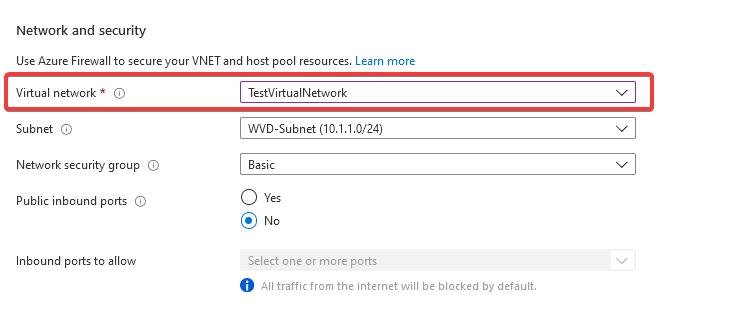
WVD Setup Host Pool 5
Domain to Join
- In this case, we will be joining our Azure Virtual Machines to our Azure Active Directory and enrolling to Intune for management.
- Then choose a username and password for the machine(s) local administrator.

WVD Setup Host Pool 6

WVD Setup Host Pool 7
- We will not look at applying ARM templates for custom configuration for this article.
Workspace
- Choose to register the desktop app group with a workspace, and choose “Create New Workspace”. Give the workspace an appropriate name.

WVD Setup Host Pool 8
- Go ahead and validate and create the resources. This might take some time, especially to create the virtual machines so go and get yourself a refreshing beverage ready for round 2!
Part 2: Set up access and Connect to resources
Now that our resources have been created, there are some additional steps we need to take to ensure they are ready to accept connections.
Assigning an application group
For the environment to recognise which apps or desktops the user will have access to, you do this via assigning an application group as follows:
- Click on Azure Virtual Desktop
- Click on Application Groups and find the application group we created as part of the host pool
- Click on Assignments
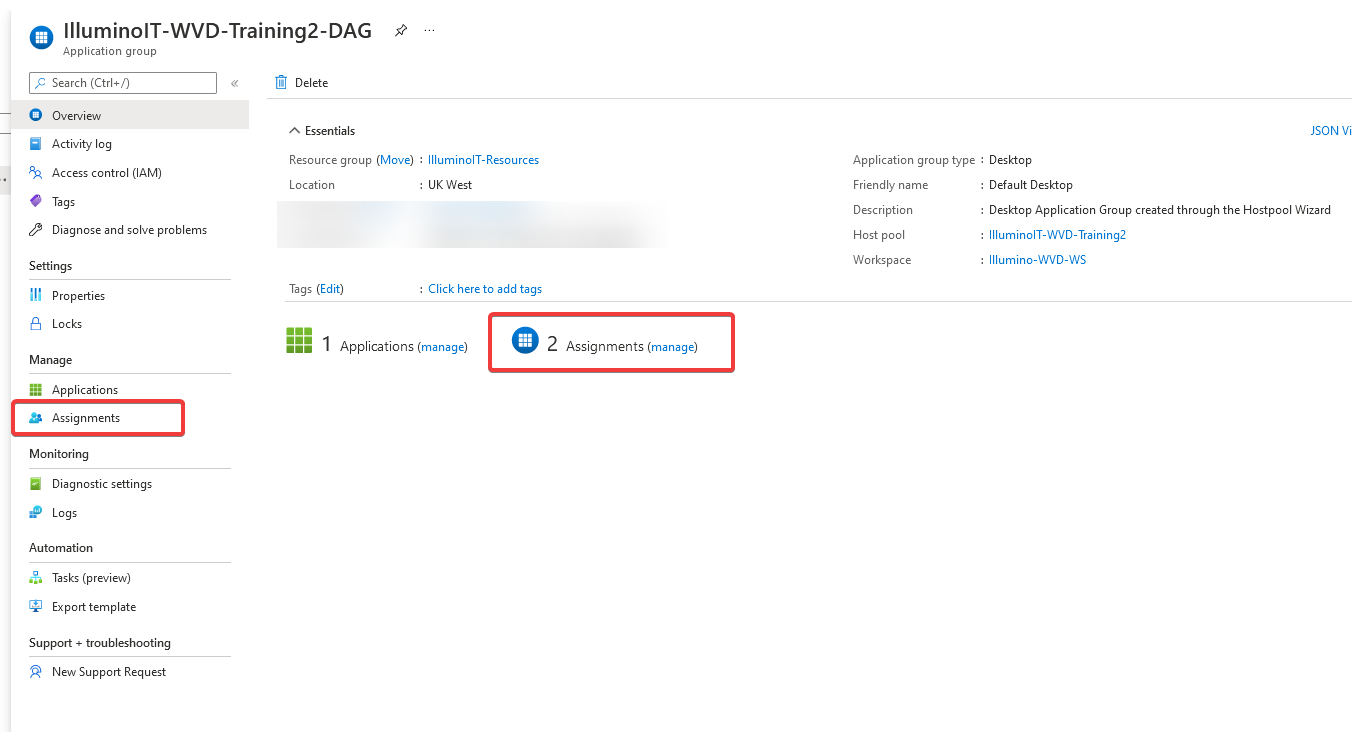
WVD Application Group 1
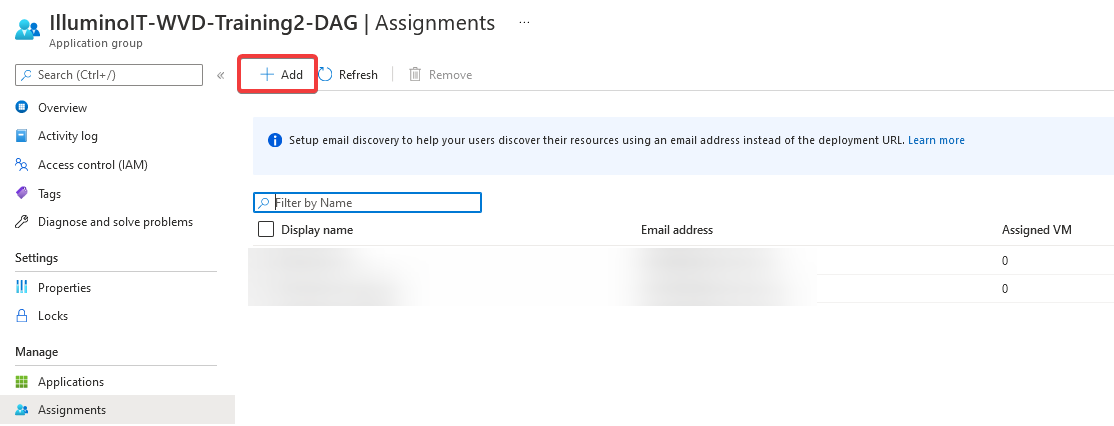
WVD Application Group 2
- Click “Add”
- Add the user (or group) who will have access to the Application Group and the Workspace we created earlier.
Assign remote access rights to the Azure Virtual Machine to end-users
This step ensures your users are allowed to connect to the virtual machine(s) through a remote desktop. In a production environment, you would use a group to manage access and automate this process, but for this demo, one user will be granted access to one machine.
Within the Azure Portal, find your virtual machines.
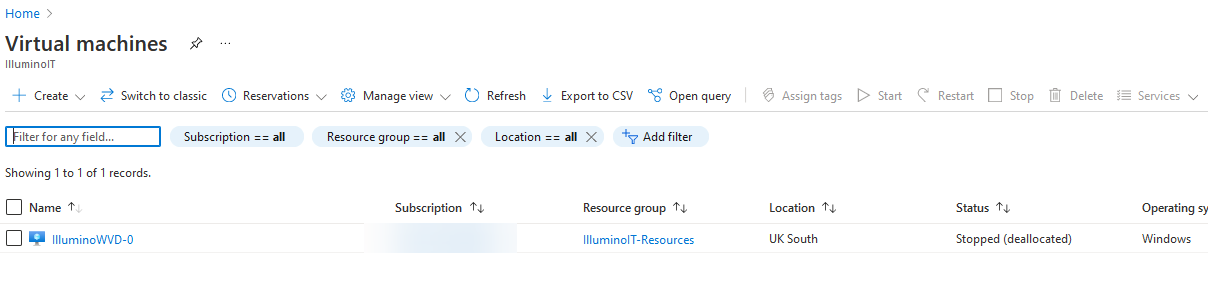
Virtual Machine Role 1
- Choose the relevant machine. In this case, it’s the machine we just created as part of the host pool
- Click on Access Control (IAM)
- Click on the “Role Assignments” tab
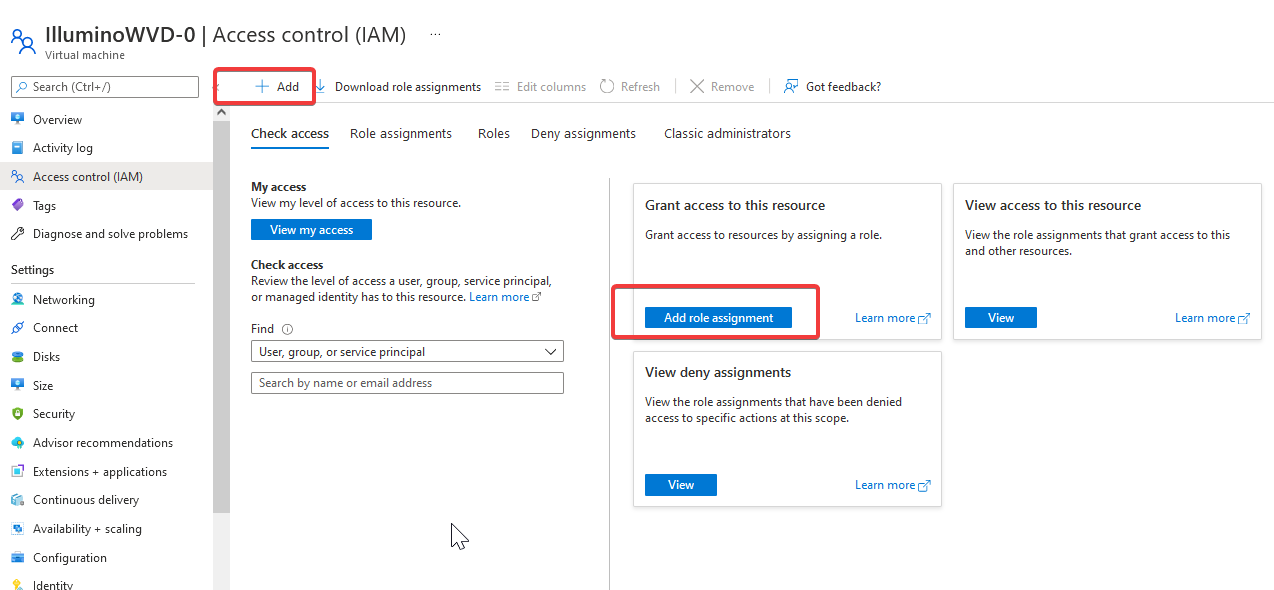
Virtual Machine Role 2
- Click “Add” and “Add Role Assignment”

Virtual Machine Role 3
- Find the “Virtual Machine User login” role and highlight it, then choose the “members” tab.
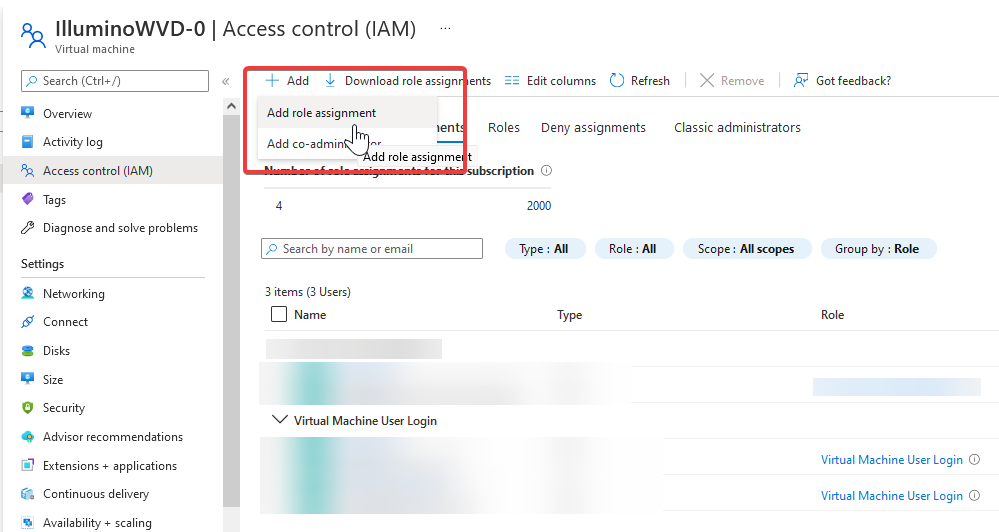
Virtual Machine Role 4
- Under “assign access to:” choose “user, group or service principal”, and we’ll use our test user for this purpose.

Virtual Machine Role 5
- Click on “Review and Assign” to finish the process.
Check your MFA settings
- The next thing to check is how MFA (we hope it has!) has been set up in your organisation.
- Connecting to Azure Virtual Desktop will not work if you have implemented MFA using the per-user settings in the Office 365 Portal (You can also link to this from the users’ page in Azure AD). The one that looks like this:
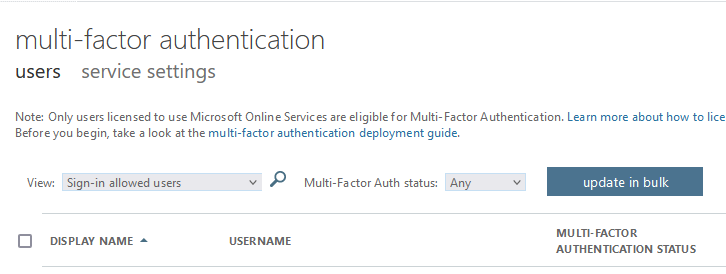
MFA Per User Screen
- For connections to be successful you will need to change to using MFA via conditional access. See this document on how to achieve this: https://docs.microsoft.com/en-us/azure/virtual-desktop/set-up-mfa
- This will require you to have Azure AD P1 or P2 licenses for those users to use conditional access.
Allowing Connection from a computer that is not joined to the same Azure AD
There is a good chance you are setting Azure Virtual Desktop up so that users who don’t have a corporate setup can connect securely to company resources.
For Azure AD joined virtual machines, if the end users’ device is not connected to the same Azure AD, you will need to carry out an additional step on the host pool to allow this connection. You can read more about this here: https://docs.microsoft.com/en-us/azure/virtual-desktop/deploy-azure-ad-joined-vm#connect-using-the-windows-desktop-client
To set the property:
- In Azure Portal, head to Azure Virtual Desktop
- Click Host Pools
- Select the Host Pool
- Click “RDP Properties” in the left-hand menu
- Click on the Advanced Tab
- Add the following to the list: targetisaadjoined:i:1 – The items are separated by semicolons.
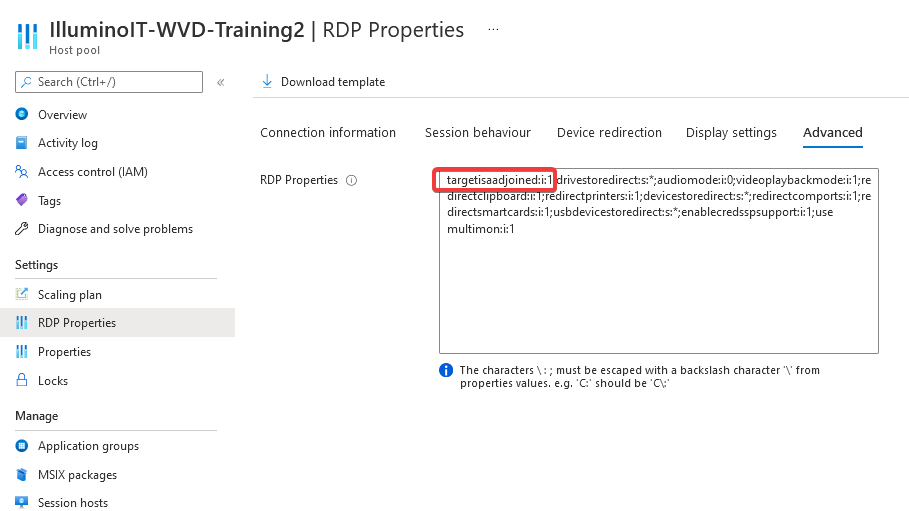
WVD Host Pool Settings
Client Considerations
To connect to the newly created environment, you have two options.
- Using the remote desktop app by Microsoft. This is not the same as the built-in RDP app on Windows. https://docs.microsoft.com/en-us/azure/virtual-desktop/user-documentation/connect-windows-7-10
- Using a Web browser through accessing: https://rdweb.wvd.microsoft.com/arm/webclient/index.html
Connecting with the remote desktop app
- Using the link above, download and install the appropriate client for your device. It is also available for Mac and iOS and Android devices.
- Once you have installed the app, you can sign in using your Azure AD account and you should be presented with the workspace which you assigned previously.
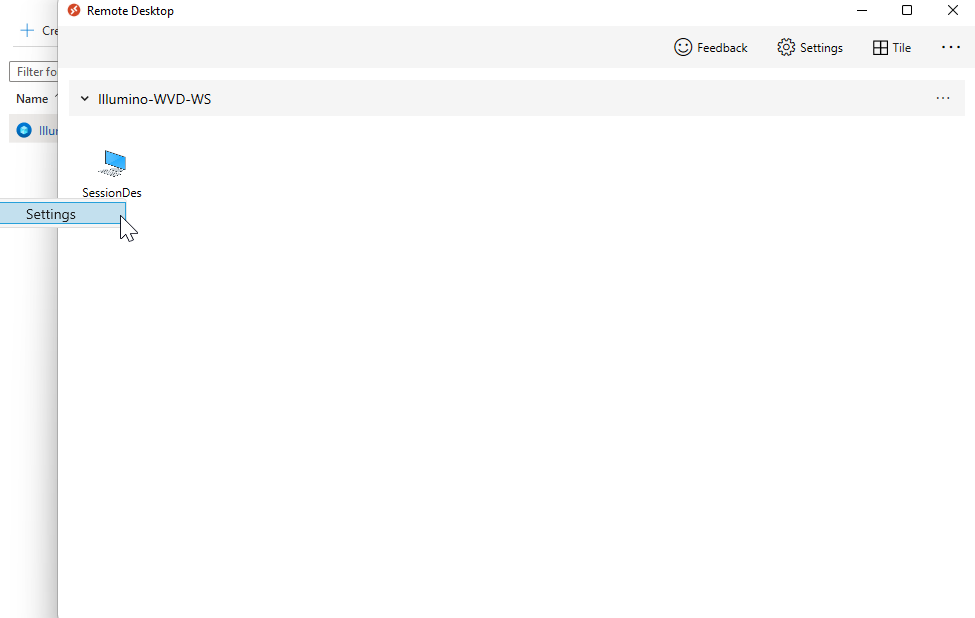
Remote Desktop App 1
- Double click on the Application (in this case the SessionDesktop)
- You may be asked to authenticate with your Azure AD credentials again.
All being well, you will be connected to your newly created Virtual Desktop environment!
Client Settings
By using settings on the specific app, you can control how your remote desktop session behaves (Unless they have been centrally defined).
- Right-click on the app and click the settings menu item which appears:
Remote Desktop App 1
- Change “Use Default Settings” to No, and this will open additional settings which you can change to suit your device.
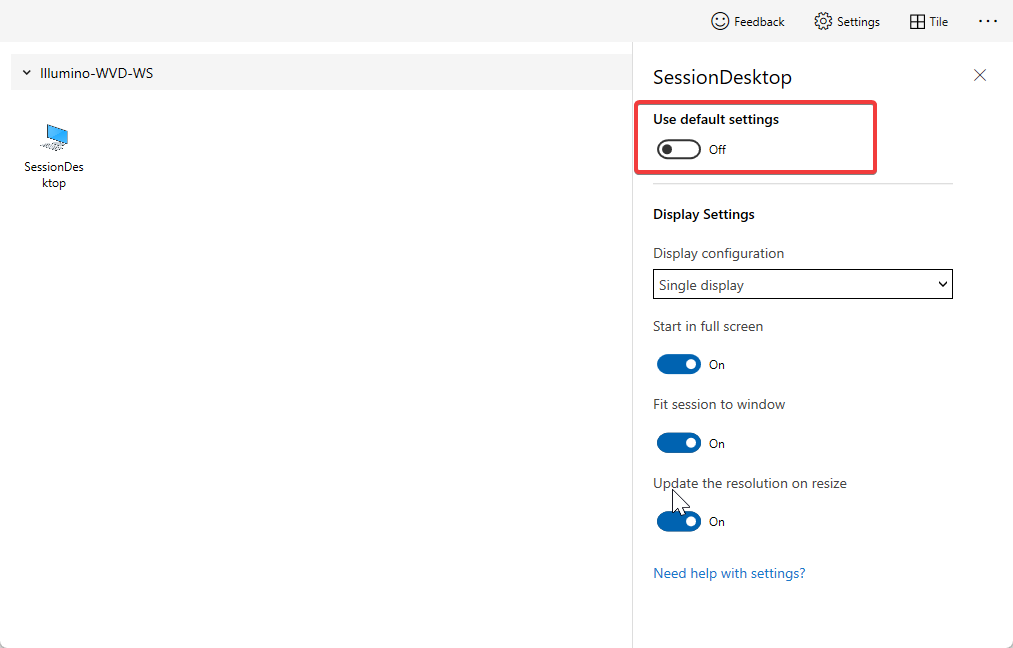
Remote Desktop App 2
Connecting through the web client
The web client is a great alternative for those without the remote desktop app on their computer.
- Simply head to https://rdweb.wvd.microsoft.com/arm/webclient/index.html in a browser.
- Sign in using your Azure AD credentials and you should be presented with your workspace and associated app.
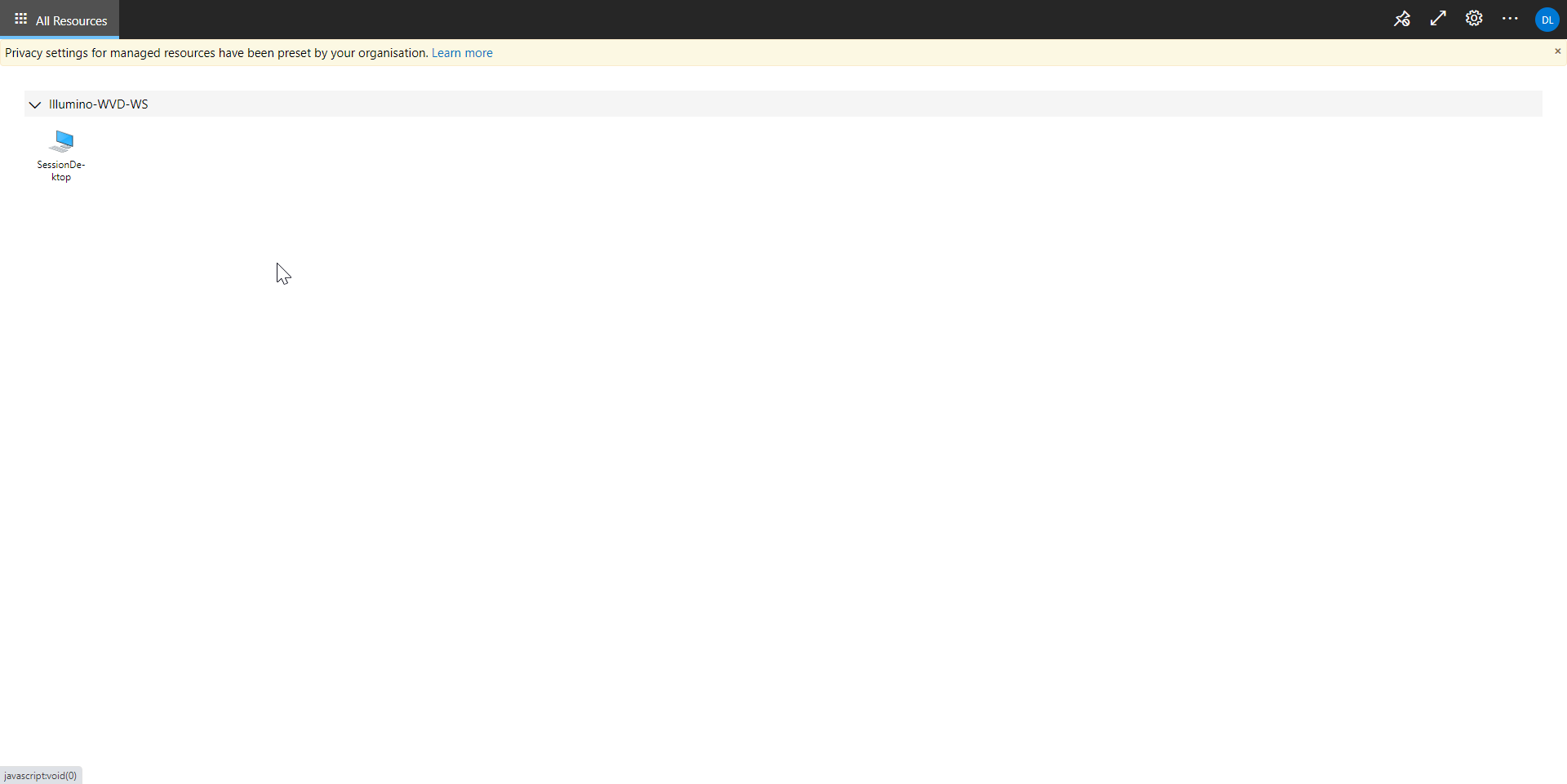
Remote Desktop Browser
- You will be presented with options to access local resources on the computer – decide what is relevant to you here.
- You can also choose to remember these settings if you want.
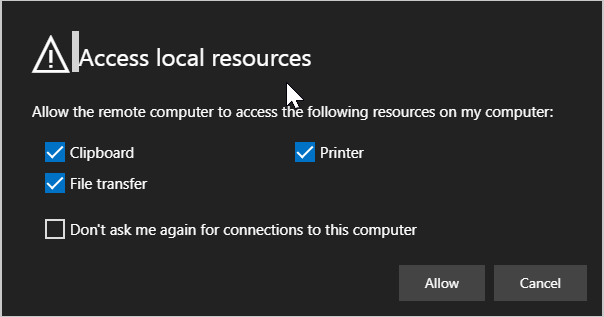
Remote Desktop Browser 2
These settings can also be controlled centrally on the host pool | RDP properties.
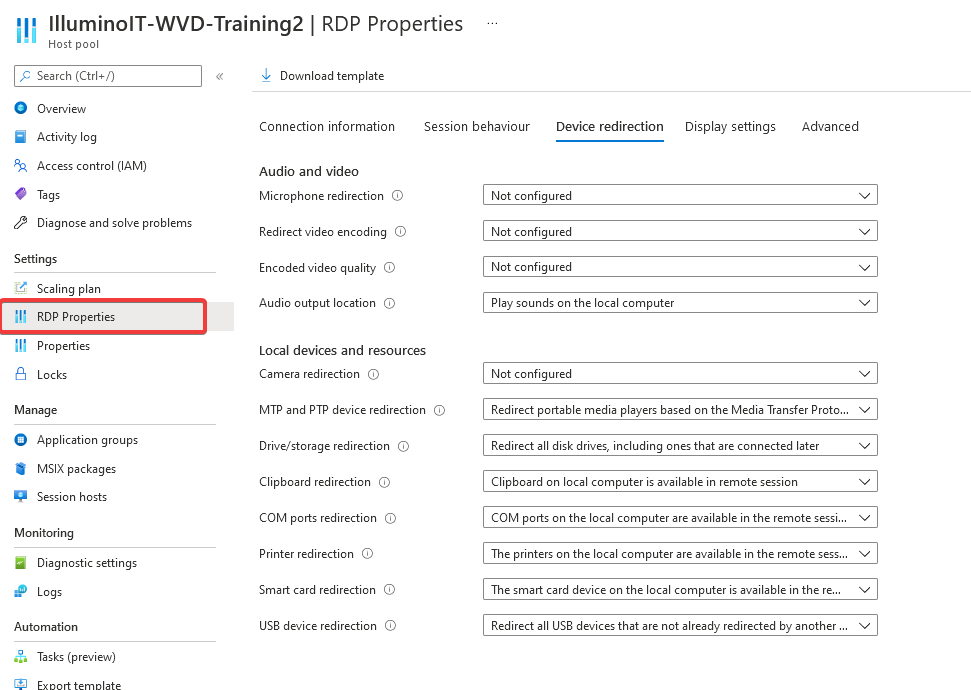
WVD Host Pool RDP Settings
- Double click on the app or desktop and it should open for you in the browser. You may need to confirm your login details again.
Conclusion
Azure Virtual Desktop keeps evolving. The ability to join machines directly to Azure Active Directory has made it even easier to get started for those organisations that are cloud-only when it comes to their Microsoft estate.
While showcasing the very simplest of setups, we hope the above instructions help you get started quickly with the technology so that you can explore the possibilities!
Keep in mind that a hugely important part of a successful deployment is planning the environment according to your business requirements and any regulatory / legal constraints you might be subject to.
If this was just a test, remember to clear up your resources unless you want to be charged. Storage for a VM might still be charged even if the machine is de-allocated. If you have created a separate resource group for this purpose, you can easily identify all resources that you can delete.
Let us know what you thought in the comments below.
Further Reading
Find Microsoft’s official information on Azure Remote Desktop and how it can benefit your business here: https://azure.microsoft.com/en-gb/services/virtual-desktop/#overview
Before you go
Sign up to our newsletter for alerts on new articles and useful information directly to your inbox.
Find us on Linked In, Facebook and Twitter!
Check out our academy for online courses related to the Microsoft 365 ecosystem at: https://academy.illuminoit.co.uk/
Until next time!
Leave A Comment